Ensight – User Manual
Step-by-step guide for AI-powered receipt capture, review, archiving, and search — in your browser and via the mobile app.
1. Getting Started
1.1 Sign In
Ensight runs entirely in your browser — there is nothing to install. Open the address provided to you (e.g. https://your-company.entropy-ensight.de) and sign in with your email address and password.
First login? Your administrator has sent you login credentials by email. After your first login, we recommend changing your password under Settings → Change Password.
1.2 Tab Overview
After signing in, you will see two main areas:
| Tab | Purpose |
|---|---|
| Invoice Analysis | Analyze new receipts with AI and save them directly to the archive |
| Review | View, analyze, and approve documents received via the mobile app or email |
2. Invoice Analysis
In the Invoice Analysis tab, you upload a document, have it analyzed by AI, and save the result directly to the archive. Ideal for invoices you receive on your computer (email attachment, download).
2.1 Upload Document
Drag a file into the upload area using drag & drop, or click the field and select a file. Supported formats: PDF, JPG, PNG.
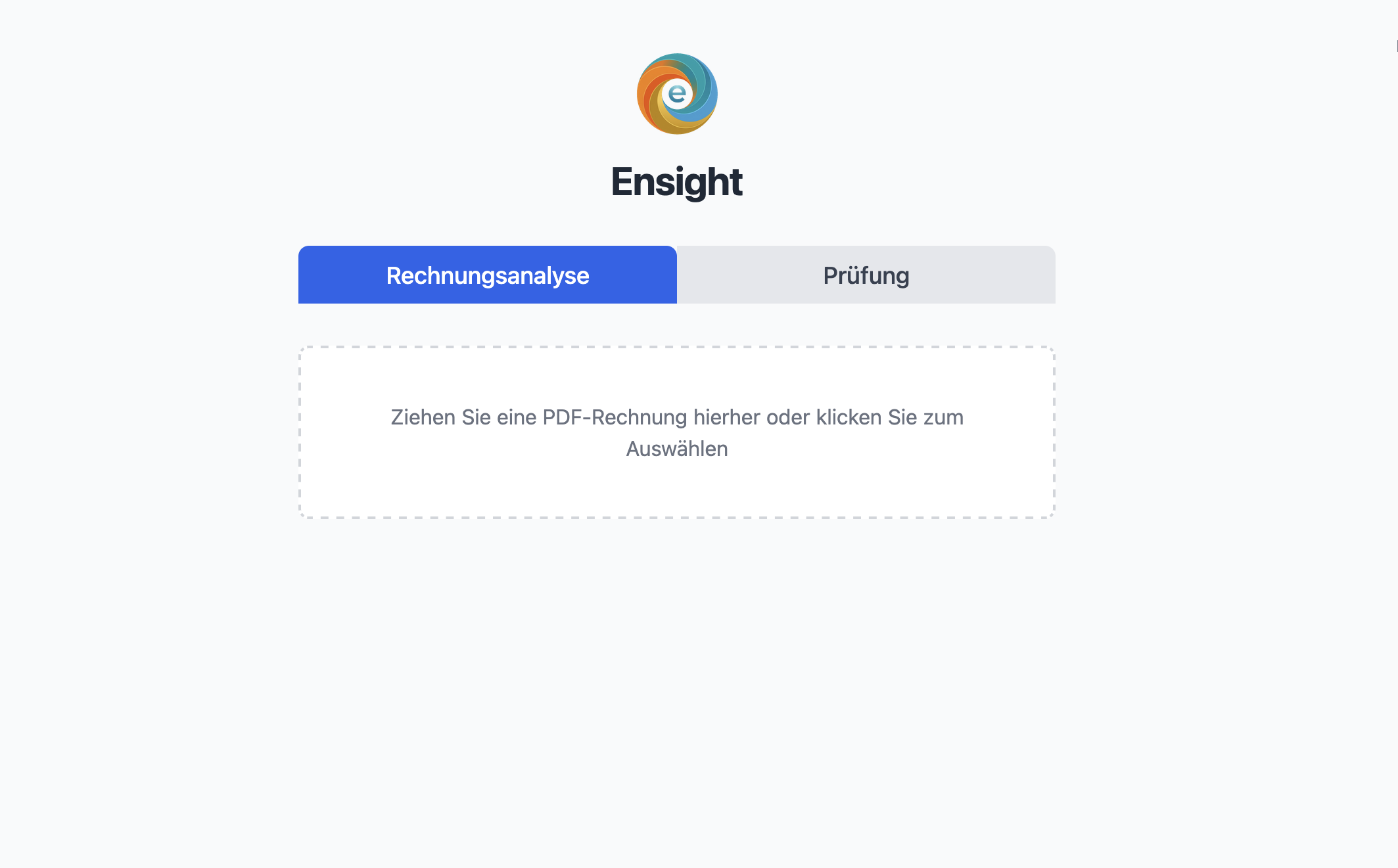
The AI automatically analyzes the document. A loading indicator appears during processing. Depending on document size, this takes a few seconds.
2.2 Review Extracted Data
After analysis, the original document appears on the left and the extracted data on the right.
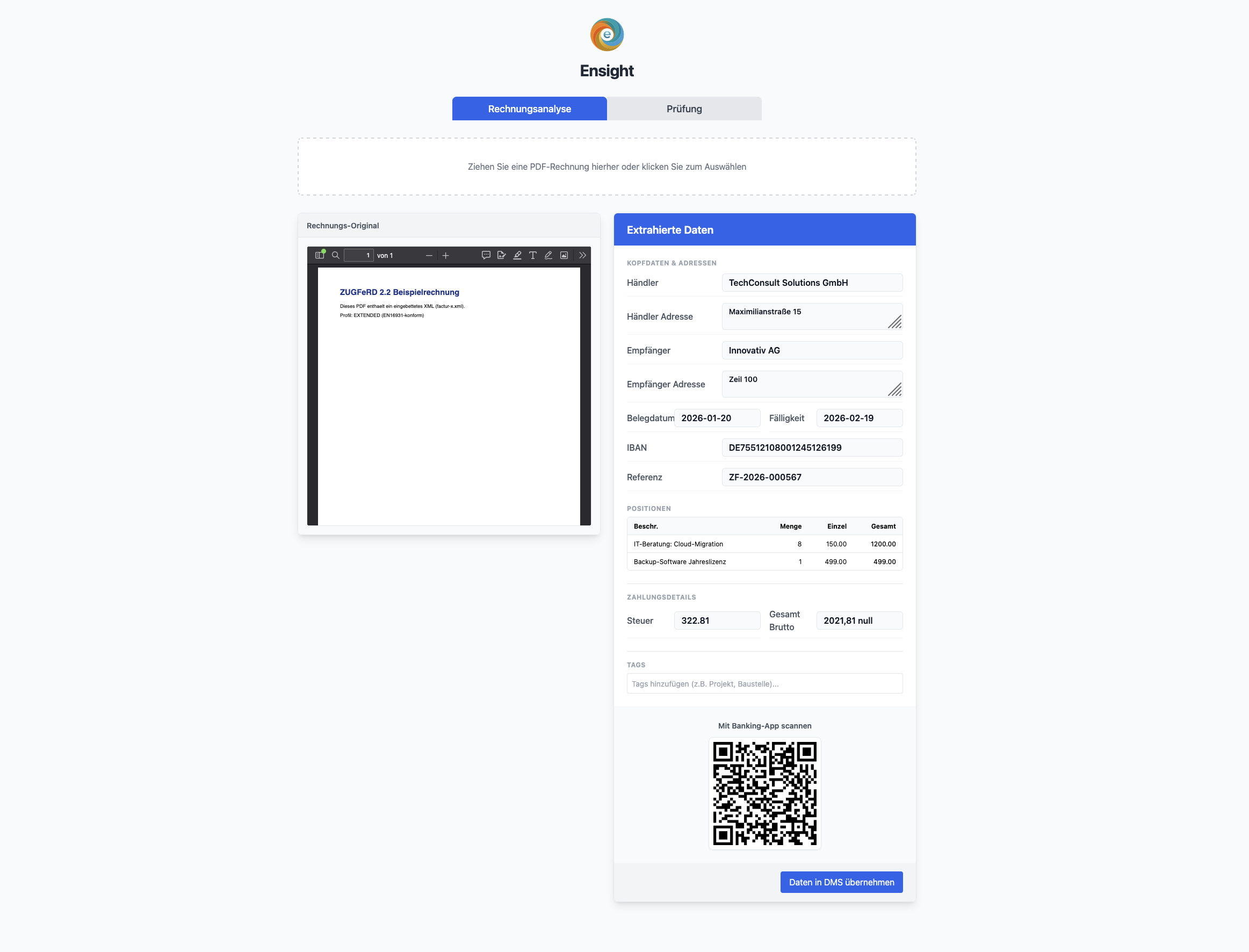
All fields are editable — correct values directly in the form if the AI extracted something incorrectly:
| Field | Notes |
|---|---|
| Merchant | Name of the invoice issuer |
| Merchant address | Full address of the invoice issuer |
| Recipient / address | Invoice recipient (your company) |
| Document date | Invoice date in YYYY-MM-DD format |
| Due date | Payment deadline, if stated |
| IBAN | Bank details of the invoice issuer |
| Reference | Invoice number or payment reference |
| Tax / Total | VAT amount and gross total |
| VAT rate (%) | Highlighted in red for unusual rates |
If the invoice contains multiple line items, Ensight displays them in a line items table with description, quantity, unit price, and total price.
Use the Tags field to assign freely chosen keywords to the document (e.g. Office, Travel, Project-X). Tags make it easier to search and filter later.
Tip: You can zoom the document preview on the left using the scroll wheel. The+and−buttons (visible on hover) let you adjust the view steplessly.
2.3 Save to Archive
Click "Save to Archive" to archive the document and extracted data. The document is then retrievable via the Search tab and is considered reviewed and approved.
If an identical document is already archived (same file content), Ensight reports a duplicate and offers to open the existing document.
2.4 GiroCode / QR Code
If IBAN, amount, and merchant name are fully populated, Ensight automatically generates a GiroCode (EPC QR code) below the extracted data. Scan it with your banking app to initiate the transfer with all data pre-filled — no manual IBAN entry required.
3. Review
The Review tab shows all documents that have not yet been approved — i.e. documents received via the mobile app or email that are waiting for your review.
3.1 Document List
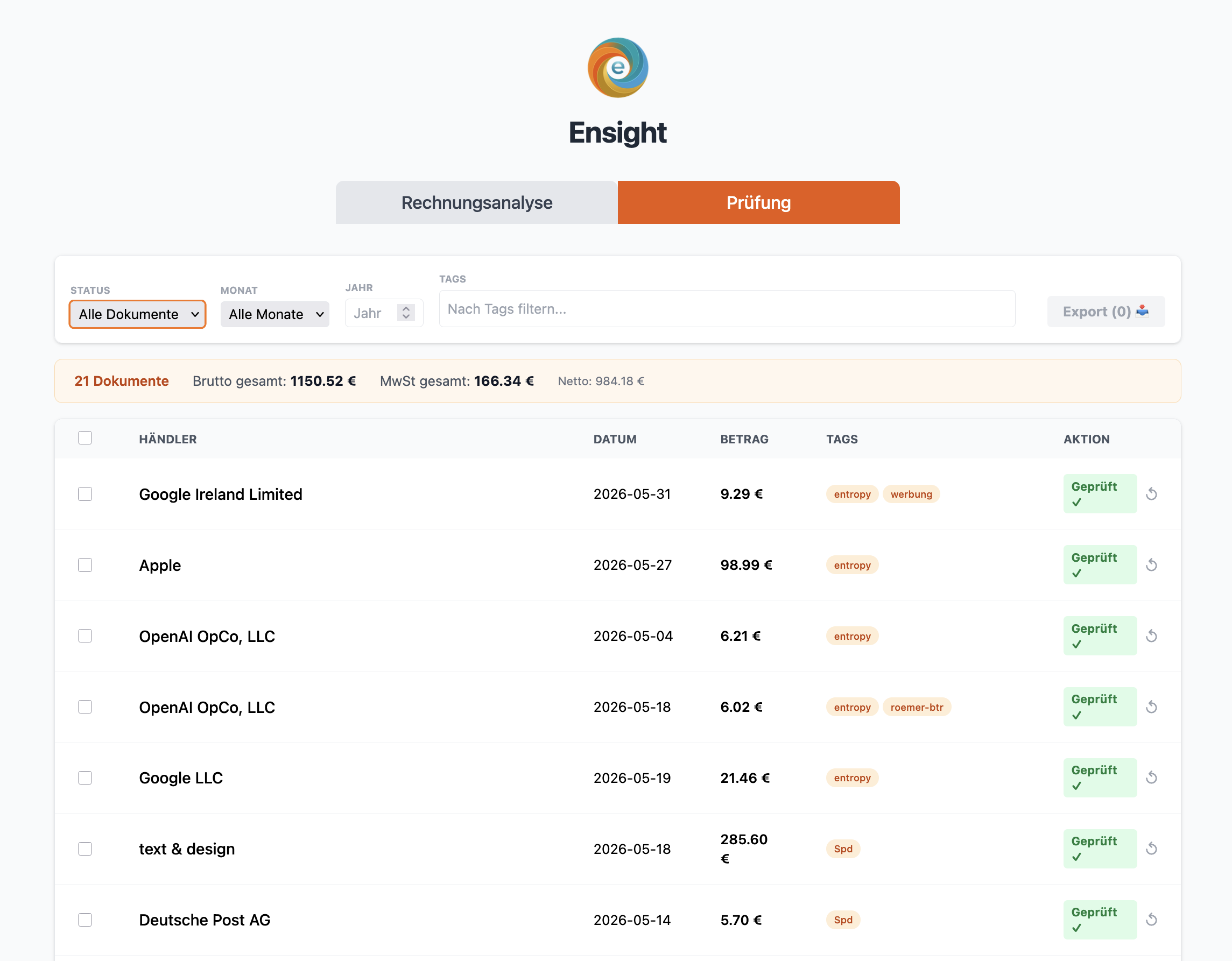
Filters
Use the filter bar at the top to narrow down the list:
| Filter | Function |
|---|---|
| Status | "Open only" (default) or "All documents" |
| Month / Year | Restrict the document date range |
| Tags | Show only documents with specific tags |
Summary Row
Above the table, Ensight shows Gross total, VAT total, and Net for all displayed (or selected) documents. Useful for a quick monthly overview.
Start Analysis
Documents without AI analysis show the button "Start analysis ✨" in the Action column. Click it to trigger AI extraction for that document. Already analyzed documents show "Review →" (still open) or "Approved ✓" (released).
3.2 Validate & Approve
Click a table row to open the document in the detail view.
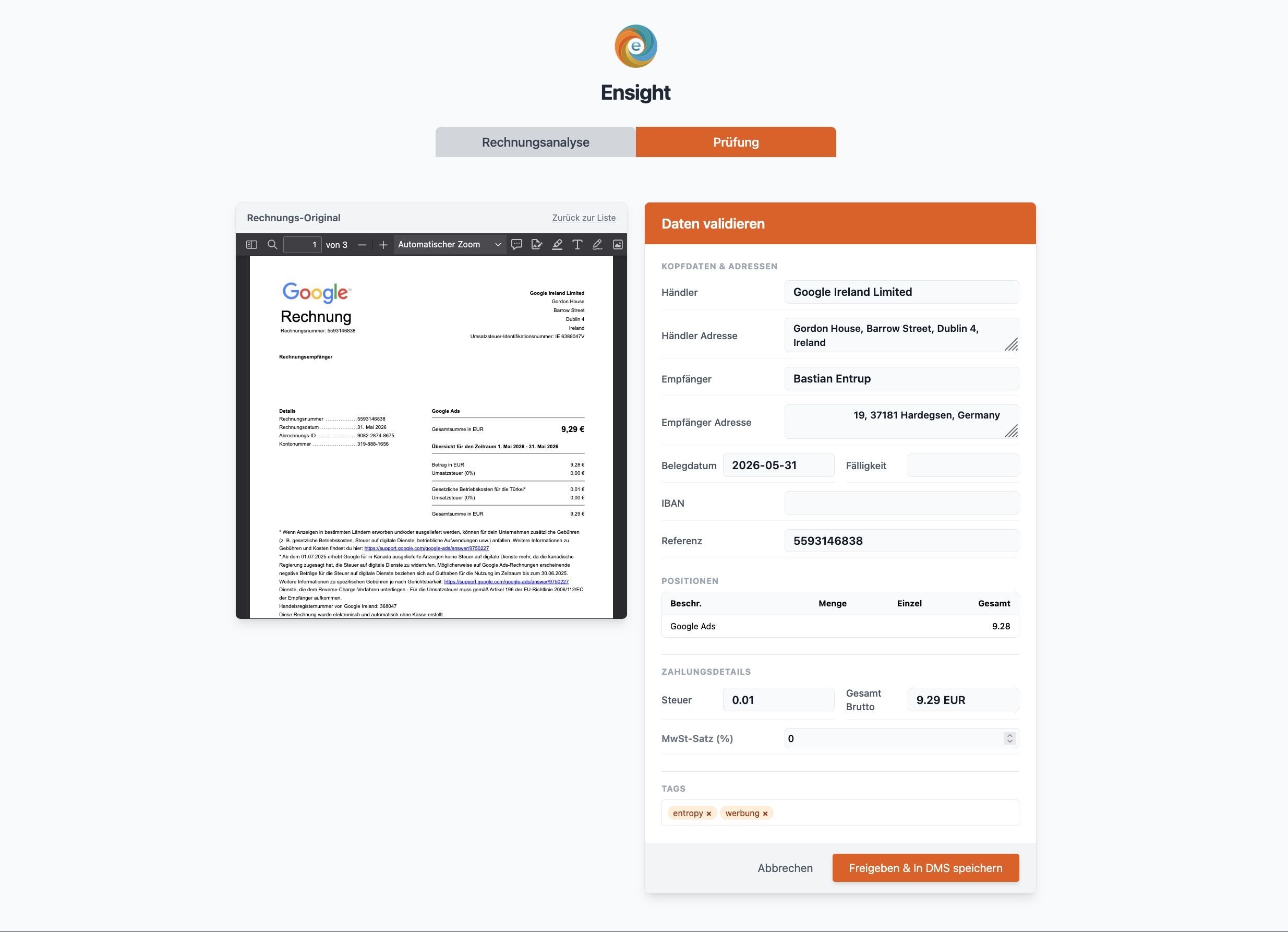
On the left you see the original, on the right the extracted data — identical to the Invoice Analysis tab. Correct any incorrect values directly in the form.
Click "Approve & Save to Archive" to archive the document. It disappears from the open documents list and is then retrievable via search.
Delete: Documents not yet approved can be deleted via the 🗑 icon in the table. Approved documents cannot be deleted.
3.3 Export
Select one or more documents in the list via checkbox, and the button "Export (N) 📥" appears. Ensight downloads a ZIP archive containing the original file and a JSON file with all extracted fields for each selected document.
If no documents are selected and you click Export, all currently filtered documents are exported.
4. Settings
Access settings via the gear icon in the top right.
4.1 Manage Users (Administrators only)
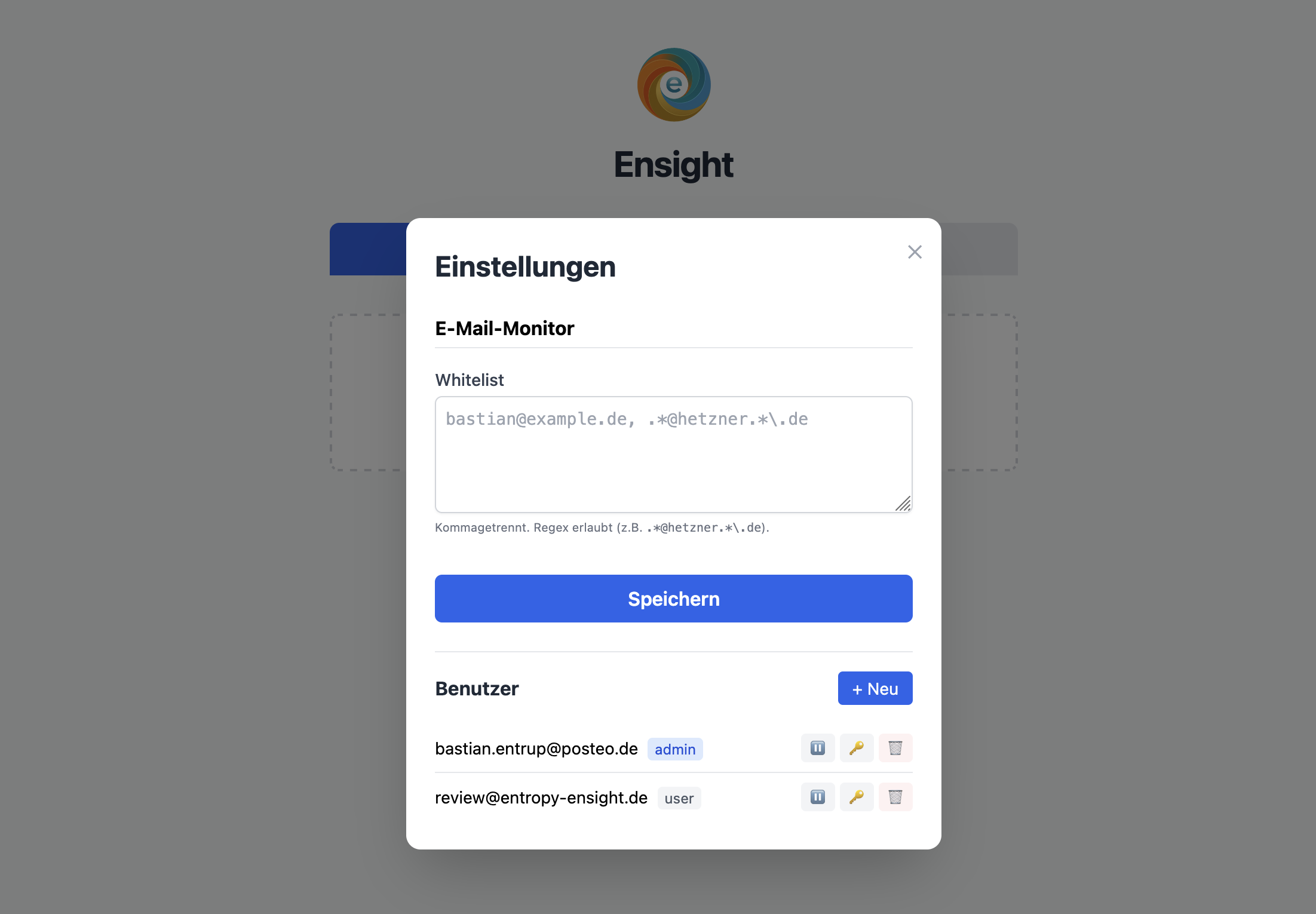
As an administrator, you can see all accounts of your organization under Settings → Users. You can:
- Create new users (email, password, role)
- Change roles: admin (full access + user management) or user (standard usage)
- Deactivate or delete users
Tip: Only assign the admin role to people who also need to manage other users. Everyone else gets the user role.
4.2 Change Password
Under Settings → Change Password, all users can update their own password. Enter your current password to confirm, then enter the new password twice.
5. Mobile App
The Ensight Mobile App lets you photograph receipts directly with your smartphone or upload from your gallery — without being at a computer. The app is available for Android (Google Play) and iOS (App Store).
5.1 Set Up
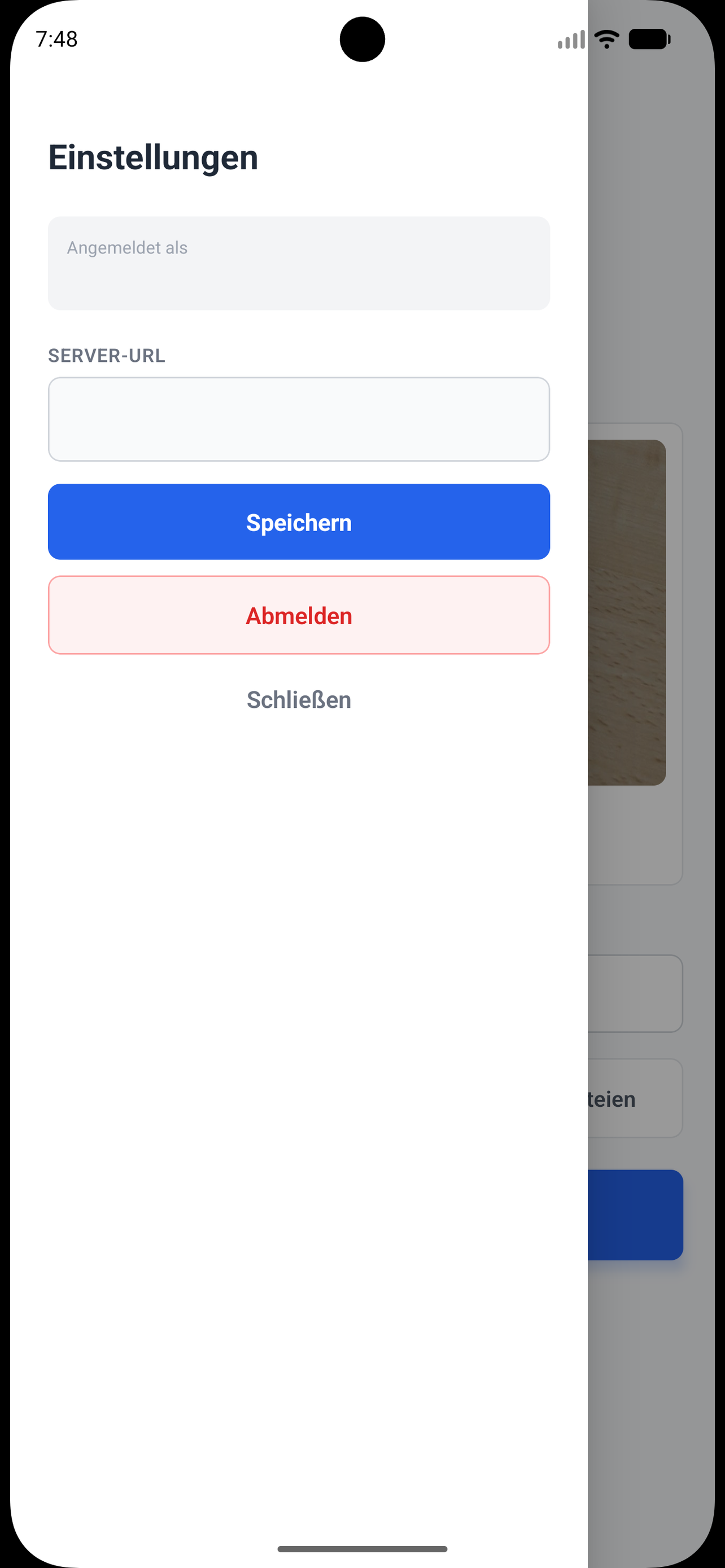
On first launch, the app asks for the server URL of your Ensight instance, as well as your email and password.
| Field | Example |
|---|---|
| Server URL | https://your-company.entropy-ensight.de |
| Your Ensight email address | |
| Password | Your Ensight password |
After signing in, your session is saved. The server URL and sign-out button are accessible via the hamburger menu (☰) in the top left.
5.2 Submit Receipt

On the home screen, three options are available:
| Button | Function |
|---|---|
| 📸 Camera | Take a photo directly with the device camera |
| 🖼 Gallery | Select an image from the photo library |
| 📁 Files | Select a PDF from the file system |
After selecting, a preview of the file appears. You can optionally enter tags (comma-separated, e.g. Office, Travel). Then tap "Send to Ensight".
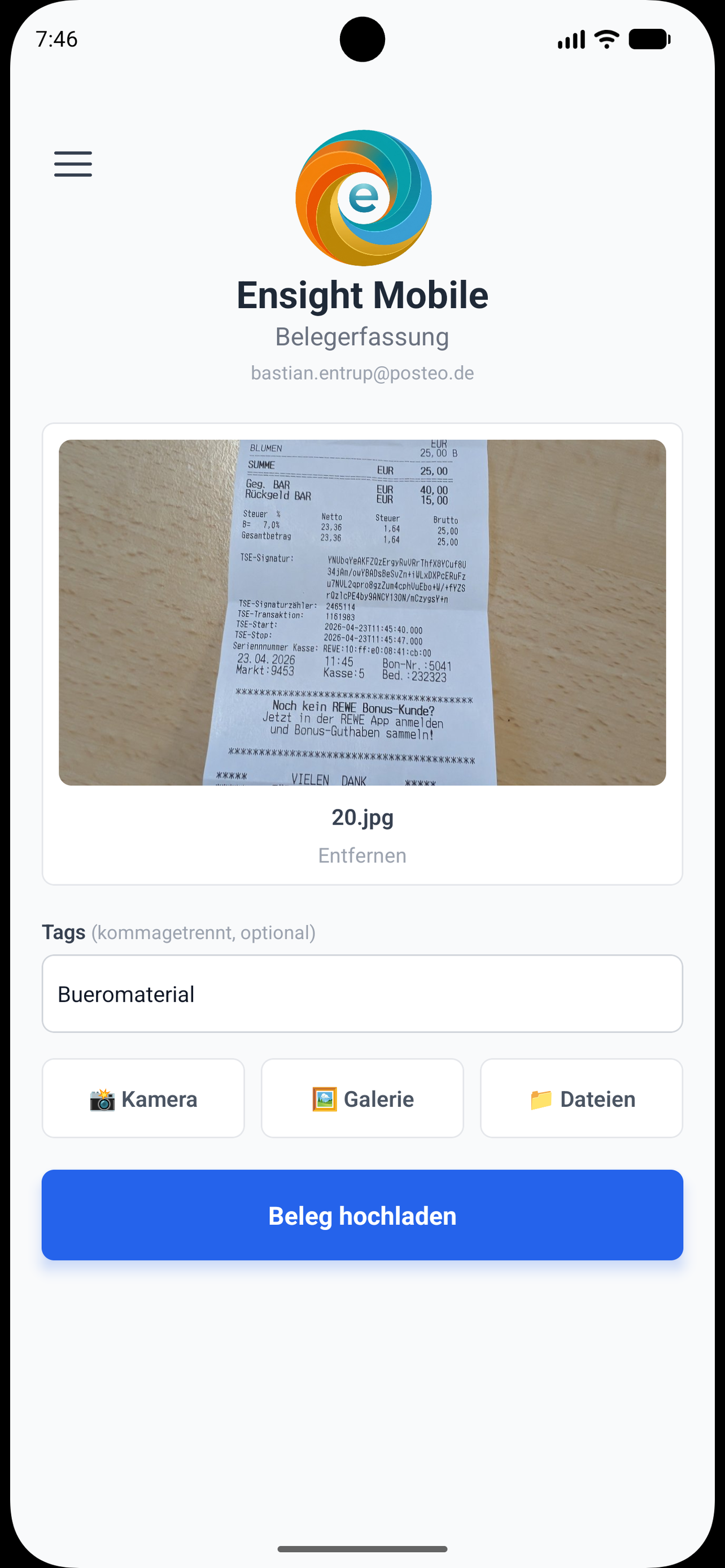
A success message confirms the upload. The document then appears in the Review tab of the web interface, waiting for your approval.
Note on image quality: The app automatically corrects EXIF orientation — photos taken in landscape mode arrive correctly rotated in the system.
5.3 Open in Browser
Via the hamburger menu (☰) → "Open in browser", the app opens your Ensight instance directly in the mobile browser — and logs you in automatically, without needing to re-enter your password or URL.
6. Email Intake
Documents can also be submitted to Ensight by email — convenient if you receive invoices by email and want to forward them directly without opening a browser.
Your Inbox Address
Each Ensight instance has a dedicated incoming email address:
receipts+your-company@entropy-ensight.deYour exact address is provided by your administrator or when your instance is set up.
How It Works
- Forward an email with the document as an attachment to your inbox address
- Supported attachment formats: PDF, JPG, PNG
- The subject line of the email is automatically used as tags (meaningful words are extracted)
- The document appears in the Review tab shortly after
Security: Only attachments are processed. The email body is ignored. Unauthorized senders are automatically rejected — your administrator can configure a whitelist.
7. Frequently Asked Questions
What is the difference between "Invoice Analysis" and "Review"?
Invoice Analysis is for documents you upload directly at your computer — AI analysis starts immediately and you can save the result straight away. The Review tab shows documents received via the mobile app or by email that still need your review. Both tabs use the same detail view for validating and saving.
Can I edit a document after approval?
Approved documents are stored in the archive and can be viewed there. Contact your administrator if corrections are needed.
What happens if I upload the same document twice?
Ensight detects duplicates using a checksum comparison (SHA-256) of the file content. For a duplicate, a message appears indicating the existing document with a link to it.
The AI extracted an incorrect value – what should I do?
All fields in the detail view are editable. Correct the value directly in the input field before clicking "Save to Archive" or "Approve". AI results are always to be understood as suggestions — the final check is yours.
How many users can I create?
There is no technical limit on the number of users. Contact info@entropy-zero.de with questions about licensing.
Is my data secure?
All data is stored on a dedicated server in Germany. All transfers use encrypted HTTPS connections. Ensight is GDPR-compliant; the server is located in Frankfurt am Main (Hetzner). Details can be found in our Privacy Policy and the Data Processing Agreement.
Which AI analyzes my receipts?
Ensight uses Anthropic Claude for document analysis. Documents are transmitted to the Anthropic API for processing and are not permanently stored there. Anthropic is a US company; transfer is based on EU Standard Contractual Clauses (Art. 46(2)(c) GDPR).
Can I use Ensight offline?
No. Ensight is a cloud application and requires an internet connection — both for the web interface and the mobile app.
How do I export all receipts for a month?
Switch to the Review tab, set the filter to "All documents", and select the month and year. Select all entries using the checkbox in the header row and click "Export". The ZIP archive contains all original files and the extracted data as JSON.
What happens to emails received without an attachment?
Emails without supported attachments (PDF, JPG, PNG) are ignored and marked as read. Plain text or other file formats are not processed.